Showing posts with label Defferent Hacks. Show all posts

Friday, 10 June 2016

How to Root Android without Computer (APK ROOT without PC)

Kingo Android Root has launched its KingoRoot apk for Android, which provides a universal one-click Android root solution for Android users. It is easy to use and saves the trouble to connect to PC via USB cable.
Before jumping into the rooting process, please make sure you get everything right beforehand.
  • Device powered on.
  • At least 50% battery level.
  • Internet connection necessary (Wi-Fi network suggested).
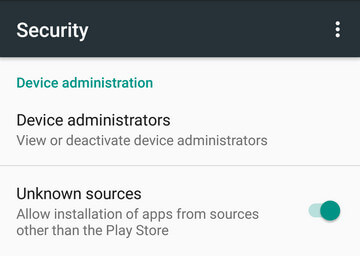
  • Allow installation of apps from unknown sources. Settings > Security > Unknown Sources

Root Android via KingoRoot APK Without PC Step by Step


Step 1: Free download KingoRoot.apk.

Root Android with KingoRoot apk, without connecting to PC
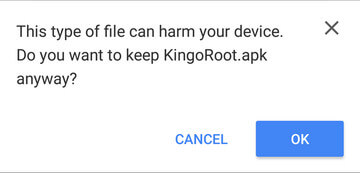
The download will be automatically started. If Chrome has warned you about KingoRoot.apk, click "OK" to proceed.
KingoRoot Apk Download, the best one-click root apk for free
If you are using PC to view this tutorial, you have three choices.

Step 2: Install KingoRoot.apk on your device.

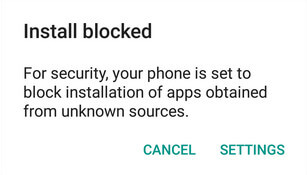
If you didn't check "Unknown Sources" in Settings > Security, then during installation, you will get a prompt "Install blocked", stating that "For security, your phone is set to block installation of apps obtained from unknown sources".
Root any Android device with KingoRoot, the best one-click Android apk root tool.
Just follow phone instructions and install Kingo Root on your device and allow installs from "Unknown Sources".
Root any Android device with KingoRoot, the best one-click Android apk root tool.

Step 3: Launch "Kingo ROOT" app and start rooting.

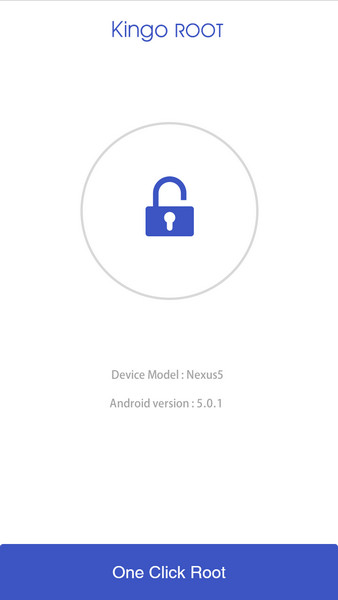
Kingo Root is very user-friendly and easy to use. Click "One Click Root" to start the rooting process.
Kingo Root Apk Main Interface

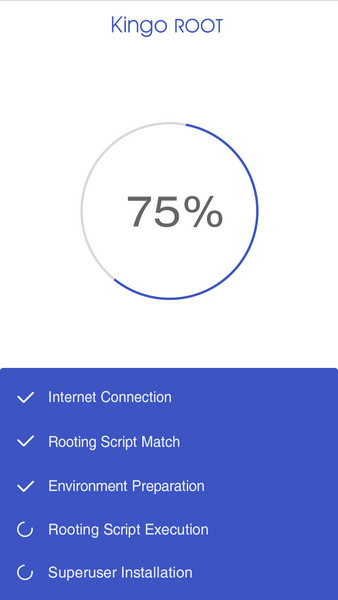
Step 4: Waiting for a few seconds till the result screen appear.

Kingo Root Apk Rooting

Step 5: Succeeded or Failed.

It is highly recommended that you try several times when rooting with KingoRoot apk version. We have several rooting methods integrated in apk root, however, it will only run one at a time.

Tuesday, 31 May 2016

How to install Wine on Kali Linux and Debian 64 bit

To install wine. We'll first enable maltiarch, then update the system and finally install wine. The commands to accomplish that are as shown below.

sudo dpkg --add-architecture i386
sudo apt-get update
sudo apt-get install wine:i386
sudo apt-get install wine-bin:i386
It will download the packages and install them. After finishing the installation, check again to confirm that the wine have been installed successfully.Type
wine --version 
If you want an all in one command, here it is.
 sudo dpkg --add-architecture i386 && apt-get update && apt-get install wine-bin:i386

Saturday, 6 February 2016

Background for flash drive folders

Goal:
I was just wondering how to put a picture as the background of my flash drive folders ? 

Process:


Procedure for Windows Vista and 7

First of all, put the iamge file (eg. test.jpg) in the root of the Flash drive. Then create a text file there and rename it desktop.ini to the root of the flash drive. Make sure it's not a .txt file.

Then open the desktop.ini file in notepad and enter the following content:

Code:

[ExtShellFolderViews]    
{BE098140-A513-11D0-A3A4-00C04FD706EC}={BE098140-A513-11D0-A3A4-00C04FD706EC}    
[{BE098140-A513-11D0-A3A4-00C04FD706EC}]    
IconArea_Image=test.jpg    

Procedure for Windows XP

Step 1: Copy the code below into notepad and then save it as "desktop.ini". Save it in your flash drive along with your picture.

[.ShellClassInfo]    
IconFile=%SystemRoot%\system32\SHELL32.dll    
IconIndex=127    
ConfirmFileOp=0    

[{BE098140-A513-11D0-A3A4-00C04FD706EC}]    
Attributes=1    
IconArea_Image="your_picture.jpg"    
IconArea_Text="0xFFFFFF"    
VeBRA sources - don't delete the tag above, it's there for XXXXX purposes -    
[ExtShellFolderViews]    
{BE098140-A513-11D0-A3A4-00C04FD706EC}={BE098140-A513-11D0-A3A4-00C04FD706EC}    
{5984FFE0-28D4-11CF-AE66-08002B2E1262}={5984FFE0-28D4-11CF-AE66-08002B2E1262}    

[{5984FFE0-28D4-11CF-AE66-08002B2E1262}]    
PersistMoniker=Folder.htt    
PersistMonikerPreview=%WebDir%\folder.bmp    

Thursday, 14 January 2016

Make Folder without Name

To create blank folder names in Windoows right-click on the Windows desktop and select New > Folder.
The folder will get created on the desktop.
To remove he name and display a blank name, right-click on the folder and select Rename. Now press the Alt key and from the Numeric keypad, press 0160.
Now press Enter or click anywhere on the desktop.
A folder with no name will be created. Change its icon and you could have a smart looking folder on your desktop.

Saturday, 9 January 2016

Nokia Offline Flashing

Offline flashing Nokia phone to update firmware to
give new life to your mobile
Tools and Requirment :
1. Modern PC with Windows XP, or later versions.
2. Nokia USB cable
3. Phoenix 2008 or later
4. Offline firmware for your Nokia type. Size vary
40 – 100 MB.
*. Check your current firmware by pressing
*#0000# in your mobile phone. Write down in
notepad
Preparation :
1. In your PC :
*. Create restore point through Start -> All
Programs -> Accessories -> System Tools ->
System Restore. Name it ‘Before flashing’ click
create.
*. Remove Nokia PC Suite, Nokia Software
Updater, Nokia Care Suite, Nokia Modem Drivers,
Nokia Connectivity Drivers through Control Panel –
> Add/Remove Programs, but DO NOT REMOVE
PC Connectivity Solution and Windows – Nokia
Modem.
Add/Remove programs
*. Restart your PC.
*. Do not connect your phone before installing
Phoenix software.
*. Disable all antivirus, firewall, antispyware,
antimalware etc.
*. Disable screen saver.
*. Check C:\Program files\Nokia\Phoenix\Products
\ If you have those folder in there delete all.
2. In your mobile phone :
*. Backup all your mobile phone content since all
your data will be lost after flashing.
*. If you protect your memory card with password,
then remove it.
*. Remove your memory card from your mobile
phone.
*. Go to Tools -> Settings -> Security -> Phone
and SIM.
Set Pin code request to Off.
Set Autolock period to None.
Set Lock code to default password which is
12345.
Set Lock if SIM changed to No.
*. Uninstall your mobile antivirus.
*. Charge your phone battery to at least 70% and
keep charging. Although flashing takes only 7-10
minutes
Begin Flashing :
1. Installing Phoenix Service Software 2008 or
later :
*. First Extract the archive you have downloaded
which contains Phoenix Service Software 2008 or
later
*. Install the software. Be patient, it may take
some minutes to install all the components.
*. Don’t run Phoenix software now.
*. Connect your Nokia handset to your pc with
USB cable in PC Suite mode.
*. windows will start installing the connectivity
drivers as soon as you connect the phone. Let it
install completely.
If this process failed then you must be remove PC
Connectivity Solution. But don’t worry we created
restore point earlier remember. Restore your
system and start remove Nokia component again
but do not remove PC Connectivity Solution.
2. Installing Firmware Files From The Offline
Package You Downloaded :
*. If your firmware file is in .rar format, first extract
it using WinRar on desktop.
*. On desktop you will find .exe file of your
firmware file.
*. Install the exe file. Do not change its path. It will
install it to default location of C:\Program files
\Nokia\Phoenix\Products\
*. If you have downloaded a firmware File which
Doesn’t have an autosetup, then just copy your
Extracted folder Manually in the directory C:
\Program files\Nokia\Phoenix\Products\
*. Be sure you install updated firmware. You
cannot downgrade your phone’s firmware in BB5
phones which includes all new Nokia phones
including N-Series.
*. Phoenix allows downgrading but your phone
doesn’t allow it as your phone has some special
security built into it. So no use of trying it. You’ll
get an error message.
3. Flashing Procedure (Updating to latest firmware
version) :
*. Open Phoenix Service Software.
Phoenix Software
*. Connect your phone in PC Suite Mode.
*. In Phoenix, click File -> Manage Connections.
*. Now click New.
*. Now select the type of cable you are using. If
you are using DKE-2, CA-53 [N-Series] cable,
select USB.
*. Click Next. It will find your product and say
FOUND. If it doesn’t find any, you can try
changing your cable type by clicking Back.
*. Click Next and then Finish.
*. Now your cable type (USB) appears in the
connection list. Select it. Click APPLY and then
CLOSE.
*. Now select File -> Open Product.
*. A list of RM code will open. Select your phone’s
RM code. Like RM-133 for Nokia N73 or RM-84 for
Nokia N70 and other nokias with there
corresponding Rm Types but choose the one
which corresponds to your phone! Click OK. At
this steps if you receive an error its okay. Just
ignore it.
*. Now select File -> Scan Product.
*. Your phone’s firmware info will appear at the
extreme bottom of the Phoenix window.
*. Now go to Flashing -> Firmware Update.
*. A window will open.
*. On that window click Browse button (the one
with three dots)
*. A window will open with various products and
various regions. Choose the region or country of
your choice according to the language pack you
want to install.
*. Click Ok.
*. Click Refurbish.
*. Now your actual flashing has started. Don’t
touch your phone or press any button until the
flashing has finished. Also don’t touch your data
cable and your computer system. Remember dont
Touch!
*. At the end Phoenix will tell you to remove your
phone as the flashing has finished.
*. Now wait for your phone to reboot into latest
firmware.
*. The flashing procedure takes 7-10 minutes
4. Flashing dead phones [Which show only white
screen on startup] :
Note : You can install any firmware in dead
phones whether it is latest and or the old one.
Note (Again) : You can make a deadphone if you
want. Just unplug your cable while flashing.
*. The procedure is the same for flashing Dead
phones.
*. Start Phoenix. Connect your phone with USB
Cable (phone is off at this time).
*. Click File -> Open Product. Select your RM
code from the window that appears. Click OK.
*. Click File -> Manage Connections. Select No
Connection. Then APPLY and CLOSE.
*. Now straight away click Flashing -> Firmware
Update.
*. A window will open. Click on Browse button [the
one with 3 dots].
*. A window will open with various products and
various regions. Choose the region or country of
your choice according to the language pack you
want to install.
*. Check the option “Dead Phone USB Flashing”.
*. Click Refurbish.
*. Flashing has started.
*. After some seconds flashing will pause asking
you to turn your phone ON.
*. Press POWER button of your phone until
backlight comes up. Remember not to remove
your cable or even remove it accidently will
switching on your phone!!
*. Flashing will proceed.
*. Your phone will automatically start when the
flashing finishes. After finish you can safely
remove your data cable from Phone. FINISHED!!!
5. If you want to install another update to your
phone after some months, first remove the
previous version you installed in C:\Program files
\Nokia\Phoenix\Products\
Delete all the contents of Products folder before
installing a new firmware.
A Genius Hacker

I don’t know how expert i am but i believe these
enough for becoming a hacker and i always try
to follow them. So just sharing with you.
A) Programming:
1. Python/perl : Learn Python or Perl
programming language. You need one of these
two language . Do you know why ? For example ,
creating exploit, Making Custom tools etc.
2.C/C++: You should know this language.
Because this will help you in many way. It is
powerful language. Perhaps you already know
that most of complex and powerful software
coded in C/C++. And The Linux/Unix operating
system language is created in C Language. For
finding exploit or making some nasty thing you
need this language.
3. Assembly Language: AH!!! Worry ? Don’t
worry. It is not too hard for learning to read or
understanding the code. Really you need asm if
you are more serious about hacking. Without
assembly language you will not be able to find
the 0day against software , because debugger
only output in asm code. Actually you don’t need
to be coder but you should able to read it,
understand it… Also if you want to know how
computer internal works then best way to learn
asm. So go with Intel Syntax and nasm.
4. PHP/SQL/Java script/html: If you want to
move to Web hacking then learn at least 2
languages(PHP and MySQL). For example If you
found php code injection vulnerable so how you
will exploit it? Clear answer is you need PHP
knowledge. And if you want to attack Client side
then you need javascript and html knowledge,
For example EXPLOITING password protected
html pages , cros site scripting, Exploiting CSRF
etc  . Have you ever heard about SQL injection ?
Guess why i told you to learn SQL.Even If you
want to find 0day for other framework like
wordpress,joomla etc then you must need to
have PHP/MySQL knowledge.
But if you are not serious about hacking and
want to hack only for fun then some tools will do
the job for you(this called skid and script kiddie),
But be aware most of time(85%) you will be
failed.
B) Networking:
Hackers hack over network(Internet?). So guess
why you need to learn networking. You have to
understand how to connect, get familiar with
ports, protocols etc. I suggest you to learn:
1. How network work + TCP/IP.
2. Protocols and port.
3. OSI model
C) Operating System:
Of course without operating system nothing is
possible. And you must need to learn about
operating system deeply. You should be very
good in various OS . Earn some Internal
knowledge about operating system. Run all
existing tools of an OS. See how it works.
1. Linux: Ah , Linux is My first choice. I love
Linux OS. It is Open source. Hacker should
choice Open source operating system so that
they can see the sources code, can modify , run
various open source tools etc. I can’t explain lol,
Get it right now!
2. Windows: Favorite target operating system
for hackers. A lot of bugs and users over the
world. Not open source. So you should learn it
well. Still i read Windows assembly language and
windows internal books instead Linux.
3.Mac:You may need it. But really i don’t know
much about mac.
C) LAB:
1. Install 2 targets operating system. Linux(Get
Ubuntu,Debain,Fedora,Redhat,OpenSuse etc)
and windows. Don’t be fucker as some trainer
doing with windows only as it is easy to exploit.
So Linux also your target.
1. Install various software and tools. Run them .
Learn them. See how it works. Install some
security software, attack against your target
system(Metasploit, nmap etc).
2. Install various networking software such as
http,ftp,pop3,smtp,rdp,ssh,nntp etc and attack
them and try to break them. try to find some
bug such as BOF by Fuzzers . Even install other
software For web hacking such as
VB,MyBB,PhpBB , joomla etc and run Various
tools against these application.
D) Journey:
Now You know what is going on and it is the time
to start the journey. Now read some security/
hacking books, Search on Google and you will
see most of security hole occur from
Programming and for networking problem. You
will learn very fast. Just remember journey will
not be end. So be careful taking enough food
(Programming+Networking+OS+Motivation
+patient) before starting the long journey.
Don’t give up!
Hope you will be one more genius !!!

Dangerous Google Dorks With Usage Methods

Dangerous Google Dorks With Usage Methods
Method 1: Facebook!
We will be using a google dork to find usernames and passwords of many accounts including Facebook!
The Dork: intext:charset_test= email= default_persistent=
Enter that into Google, and you will be presented with several sites that have username and passwords lists!
Method 2: WordPress!
This will look for WordPress backup files Which do contain the passwords, and all data for the site!The Dork: filetype:sql inurl:wp- content/backup-*
Method 3: WWWBoard!
This will look for the user and passwords of WWWBoard usersThe
Dork: inurl:/wwwboard/passwd.txt
Method 4: FrontPage!
This will find all users and passwords, similar to above.The Dork: ext:pwd inurl:(service | authors | administrators | users) “# – FrontPage-”
Method 5: Symfony!This finds database information and loginsThe
Dork: inurl:config/databases.yml -trac -trunk -“Google Code” -source
-repository
Method 6: TeamSpeak! (big one!!!!!)This will search for the server.dbs file (a Sqlite database file With the SuperAdmin username and password!!!)The Dork: server-dbs “intitle:index of”
Method 7: TeamSpeak2!!! (also big!)This will find the log file which has the Super Admin user and pass in the Top 100 lines. Look for “superadmin account info:”The Dork: “inurl:Teamspeak2_RC2/server.log”
Method 8: Get Admin pass!Simple dork which looks for all types of admin infoThe Dork: “admin account info” filetype:log
Method 9: Private keys! (not any more!)  This will find any .pem files which contain private keys.The Dork: filetype:pem pem intext:private And the Ultimate one, the regular directory full of passwords….
Method 10: The Dir of Passwords! Simple one!The Dork: intitle:”Index of..etc” passwd

How To Create Your Own Run Commands

How To Create Your Own Run Commands
First of all, you need to open the Run window by just pressing the Windows Key along with the R key, i.e. Windows + R.
Now, you have to type the name of the program that you desire to open up or execute.
Unfortunately, not all programs can be accessed through this method. So,
let me show you how to create Run commands that do not come as inbuilt commands.
Steps to Create your own run commands
Step 1. The first step is to select the software or application for which you want to make custom Run command.
For example, let us consider Google Chrome as the example here.
Remember, you can choose any application other than which is already there in the Run command.
Step 2. In the second step, right click on the desktop of your computer system and make a new shortcut.
Right click > New > Shortcut
Step 3. As you select the Shortcut option in the 2nd Step, it will open up a dialog box.
And, the dialog box will ask you path of the application or software for which you want to create the Run command.
Step 4. Now, you need to browse through the files and choose the one that shows chrome.exe.
Well, it is quite obvious that all the executable files can be found in the C drive (or wherever the Operating System has been installed),
inside the folder Program Files. For example, C:\Program Files\Google Chrome\chrome.exe
Step 5. Once you are done with Step number 4, just click on Next button and simply provide a relative name to that shortcut.
Remember, the same name will be used later in the Run command.
For example, GC for Google Chrome
Step 6. Now, click on the Finish button. Once it is done, an icon related to that application or software will show up on your computers screen.
It means that the process of creating shortcut has been done successfully.
Step 7. In this step, just cut and paste that recently made shortcut icon into your computers root drive, in its Windows folder.
For example, C:\ Windows , Make sure you are the administrator of the computer or have its password.
Step 8. Now, you are done with the set up and can run the application through Run Command.
Just go to Run and enter the keyword GC, and Google Chrome will begin executing.

Invoking Useful GUIs at the Command Line

Local User Manager (includes group management):
C:\> lusrmgr.msc

Services Control Panel:
C:\> services.msc

Task Manager:
C:\> taskmgr.exe

Security Policy Manager:
C:\> secpol.msc

Event Viewer:
C:\> eventvwr.msc

Control Panel:
C:\> control

Close GUI windows by hitting Alt-F4